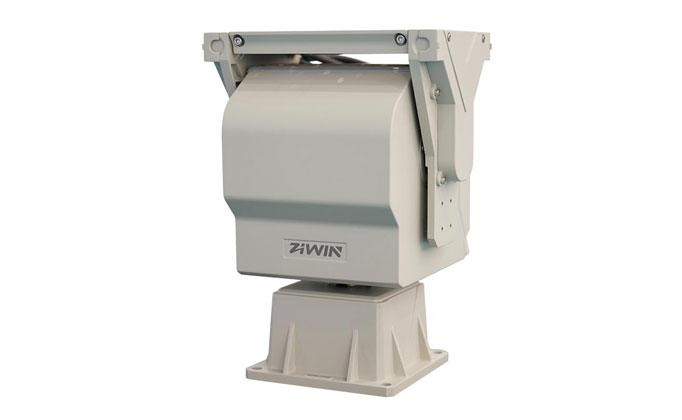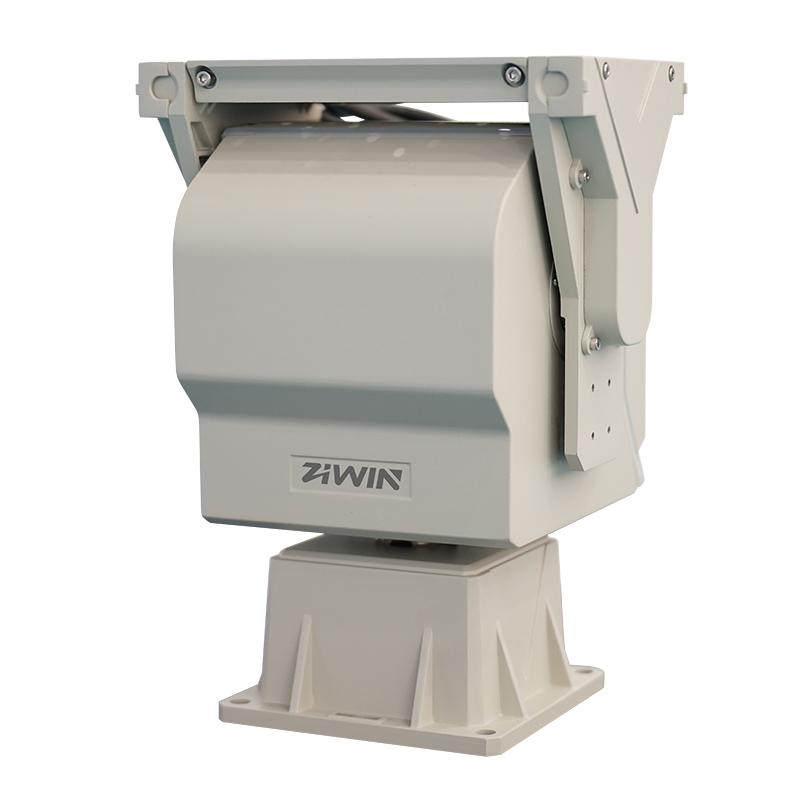
Once you've selected a high-performance Pan Tilt Unit (PTU), correct installation, meticulous calibration, and thorough debugging are critical to unlocking its full potential and ensuring long service life. The term Pan Tilt Positioner specifically highlights its core capability of "precise positioning." This guide provides step-by-step instructions for the professional installation of your PTU and details essential calibration and debugging points, enabling your "agile eye" to see more steadily, accurately, and further.
Pre-Installation Preparation
1. Site Survey:
o Mounting Point Confirmation: Does the location meet surveillance coverage needs? Are there sightline obstructions? Is it accessible for future maintenance?
o Structural Assessment: Is the mounting surface (wall, pole, beam) sufficiently strong and stable? Can it withstand the combined weight and torque of the pan tilt unit, camera, and wind load? Crucial for elevated installations! Reinforce if necessary.
o Environmental Check: Are waterproofing, dustproofing, power access points, and signal cable routing planned?
2. Tool & Material Preparation:
o Electric drill, hammer drill (for concrete), appropriate drill bits, spirit level, wrenches (open-end, adjustable), screwdrivers (Phillips, flat-head), wire strippers, crimping tool, multimeter, waterproof/electrical tape, waterproof mastic/silicone, cable ties, safety harness (essential for high work).
o Compatible mounting bracket, wall plugs/anchors (suited to wall material), PTU accessory kit.
3. Product Unboxing & Inspection:
o Verify contents against packing list (PTU body, bracket, screw pack, manual, etc.).
o Inspect for any shipping damage.
o Gently rotate horizontal and vertical axes by hand to check for binding or unusual noises (CAUTION: Perform this VERY gently before powering on to avoid damaging internal gears).
Mechanical Installation of the Pan Tilt Unit
1. Bracket Installation (If Applicable):
o Position the bracket according to plan. Use a spirit level to ensure the bracket is mounted PERFECTLY LEVEL. This is foundational for subsequent PTU leveling! Mark holes, drill, insert anchors, and securely fasten the bracket.
2. Mounting the PTU to Bracket/Base:
o Align the PTU base with the bracket mounting plate or directly to the mounting surface (e.g., for pendant mount).
o Securely and evenly tighten the PTU-supplied screws. Ensure all screws are installed and tightened to prevent loosening from long-term vibration.
o VERIFY LEVEL: Use the spirit level again on the PTU base (or designated leveling surface) to confirm the entire pan and tilt unit is perfectly level. This is critical for smooth rotation and a level image horizon!
3. Installing Camera & Housing:
o Mount the camera securely onto the PTU's camera platform according to the camera's manual. Ensure locking screws are tight.
o If using an external housing, fit it over the camera and PTU (some PTUs have integrated housing interfaces). Follow housing instructions for sealing. Imperative: Perform thorough waterproofing, especially at cable entry points, using waterproof mastic and glands.
Electrical Connections & Wiring
SAFETY FIRST! DISCONNECT ALL POWER BEFORE PROCEEDING!
1. Power Cable Connection:
o Confirm the PTU's required voltage (AC24V/DC24V/DC12V). Use appropriately rated cable with sufficient gauge (consider voltage drop over distance).
o Strip wire ends and connect to the PTU's power terminals (+ / - or L/N, carefully match the PTU wiring diagram!).
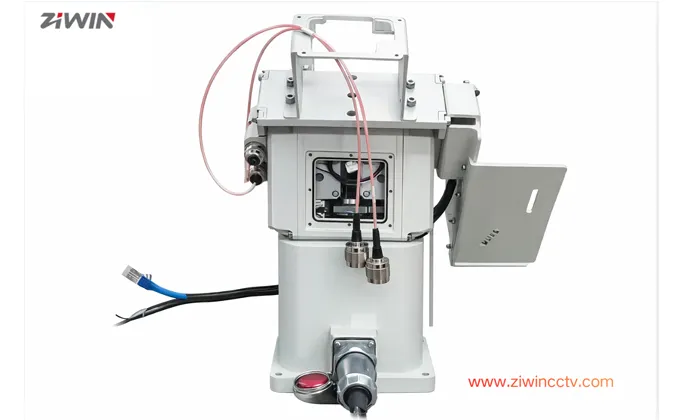
o Perform insulation and weatherproofing (outdoor). ZIWIN TECHNOLOGY pan tilt units typically feature convenient terminal blocks or aviation connectors.
2. Control Signal Cable Connection (RS-485):
o Use shielded twisted pair (STP) cable (e.g., one pair from Cat5e/Cat6 cable or dedicated RS-485 cable). The shield is vital for noise immunity.
o Connect the PTU's RS-485 interface (usually labeled A+/B- or D+/D-) to the corresponding interface on the controller (DVR/NVR/keyboard).
o CRITICAL NETWORK CONFIGURATION:
Ensure the entire RS-485 network uses a "daisy-chain" (bus) topology, NOT star topology.
Install a 120Ω termination resistor between the A+ and B- terminals ONLY at the LAST device on the bus (usually the final PTU or controller end). This is essential for stable communication without packet loss! Carefully review controller and PTU manuals regarding termination.
o Shield Grounding: Ground the cable shield at one end only (typically at the controller or power supply end) to a proper earth ground. Leave the other end unconnected to avoid ground loops.
3. Video/Network Cable Connection:
o Analog Camera: Connect the video cable (e.g., SYV-75-5) to the PTU's video input interface (if it integrates a video slip ring).
o IP (Network) Camera: Connect the network cable to the PTU's network interface (also via slip ring). Shielded (STP) Ethernet cable is recommended.
o Perform weatherproofing!
4. Cable Management & Protection:
o Use cable ties to separately bundle and secure power, control, and video/network cables, preventing tangling and strain.
o For outdoor runs, use conduit or cable trays to protect cables from sun, rain, and damage.
o Leave a sufficient service loop of cable at the PTU's exit point to prevent tugging during rotation.
Initial Power-On & Basic Setup
1. Final Check: Are all connections correct and secure? Weatherproofing complete? Screws tightened?
2. Power On: Apply power. Observe PTU indicator lights (if present) – should show normal status (e.g., power LED on, comms LED blinking).
3. Communication Test: Using the control keyboard or VMS software, send basic commands (e.g., pan left, pan right). Observe if the pan tilt unit responds.
4. Set Address Code: If multiple PTUs are on the network, set a unique RS-485 address for each via DIP switches on the PTU or software (if supported). Address conflicts cause control chaos.
5. Set Protocol: Via DIP switches or software, set the PTU's communication protocol to exactly match the controller (keyboard/DVR/VMS).
Core: Calibration & Fine-Tuning
1. Level Calibration (Re-confirm):
o Use control software/keyboard to rotate the PTU to its horizontal position (0° Pan). Observe if the horizon line (or a reference object) in the camera image is level. If NOT level, the physical mount isn't perfectly level.
o Solution: Power OFF. Slightly loosen the mounting screws (don't remove). Shim under the base with thin washers until the image is level. Retighten screws securely. This is the foundation for accurate positioning.
2. Preset Position Setting & Calibration:
o Drive the PTU using the controller to aim the camera precisely at a distinct, critical target point.
o Focus the lens sharply.
o On the controller (keyboard/VMS), invoke the "Set Preset" function and assign a preset number (e.g., 1).
o Key Step: Calibrate Position Feedback: High-quality pan tilt positioners (like ZIWIN's Series) typically support:
Position Learning / Write Command: Send a command telling the PTU "this current position IS the actual location for Preset X." This uses the internal encoder to record the exact angle.
Visual Fine-Tuning (Optional): Some advanced systems allow minor pixel-level adjustment of the preset's image center point.
o Test Repeatability: Move the PTU elsewhere. Recall the newly set preset. Observe if it accurately returns to the target. Repeat several times to check repeatability. Significant deviation warrants checking mount stability, potential overload, or PTU accuracy.
3. Limit Setting (If Required):
o Horizontal Limits: Drive the PTU to its leftmost allowed position, set the left limit. Repeat for the right limit. Prevents cable winding or collisions.
o Vertical Limits: Set the maximum upward (tilt up) and downward (tilt down) angles. Prevents the camera from hitting its housing or bracket.
4. Speed & Mode Settings:
o Set appropriate Pan and Tilt speeds (cruise speed, tracking speed) in the control software.
o Set a Home Position.
o Enable Auto Flip functionality (if supported by PTU and camera).
o Configure Cruise Paths (Patterns/Tours).
Final Testing & Commissioning
· Test all control functions: Pan/Tilt directions, speed changes, preset recall, cruising, home position return.
· Test preset accuracy at different zoom levels (higher zoom demands greater precision).
· Simulate moving targets to test tracking (manual & auto-tracking).
· Check image stability for noticeable jitter during movement.
· Complete an installation and commissioning checklist.
Maintenance Tips
· Periodically (e.g., quarterly) check mounting screw tightness.
· Clean the PTU housing, especially vents (for fans/heaters) and seams on outdoor pan and tilt units, to prevent dust buildup affecting cooling and weatherproofing.
· Inspect cables for aging, damage, or animal bites.
· Regularly test preset accuracy and basic functions.
Conclusion: Installing and debugging a Pan Tilt Positioner requires patience and attention to detail. Strict adherence to installation standards, emphasis on level calibration and preset calibration, and ensuring correct and reliable electrical connections (especially the RS-485 network) are paramount for ensuring the long-term precision, stability, and reliability of your pan tilt unit. ZIWIN TECHNOLOGY not only provides high-quality Pan Tilt Units, but our comprehensive manuals and readily available technical support will guide you to a successful installation and commissioning.
 +86-15022658927
  sales@ziwincctv.com
  English
 français
 Deutsch
 Español
 italiano
 русский
 português
 العربية
 tiếng việt
 ไทย
ไทย Türkçe
 Pilipino
 עברי
עברי Afrikaans
 Polska